
1. Sync your personal calendar
Teachers can now subscribe to their personal calendar (Google, Apple, etc.) via an iCal link on the "My Availability" page. ✨
This automatically shows private appointments as blocked—manual availability exceptions are no longer needed. Multiple calendars can be subscribed to at once, with updates syncing regularly (a warning with a manual sync option appears if issues occur).
⚒️ How does it work?
Simply copy the calendar URL in iCal format that you want to subscribe to, then paste this link via the "Add calendar" option on the "My Availability" page.
With very large calendars, a timeout may occur during connection. Since it's unclear how relevant this is in practice, the feature will initially be released "silently."
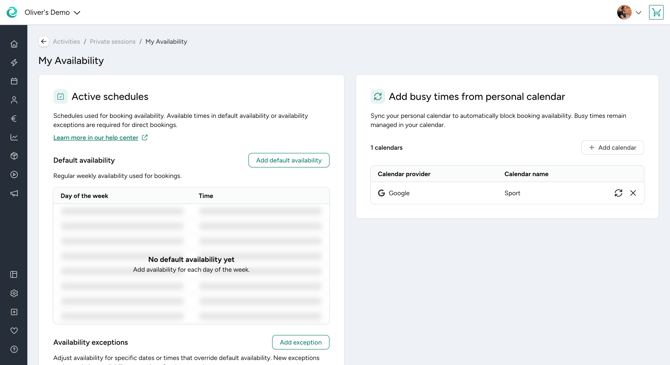
➡️ For more detailled Information please read our Help Center article.
2. Set room sharing rules to optimize your room occupancy
You can now define how many private appointments can take place simultaneously in the same room. ✨
💡 Why is this helpful?
This allows you to optimize room occupancy, and private sessions can be booked directly online. Exclusive room usage can also be mapped this way.
⚒️ How does it work?
In the settings of the Private Session extension in the Market, there's a new widget for room rules. You define:
- How many private appointments can take place simultaneously in the room
- How many, if a group session is also running at the same time
➡️ Read this Helpcenter Article for more detailled information on room occupancy.
3. Manage teacher availability
Admins and leading employees can now manage the availability of teachers and trainers for private sessions. ✨
💡 Why is this helpful?
This lets them keep track of whose availability is already recorded, outdated, or missing, and manage it directly. For shift-based schedules, multiple teachers with the same schedule can be selected and edited at once instead of individually.
⚒️ How does it work?
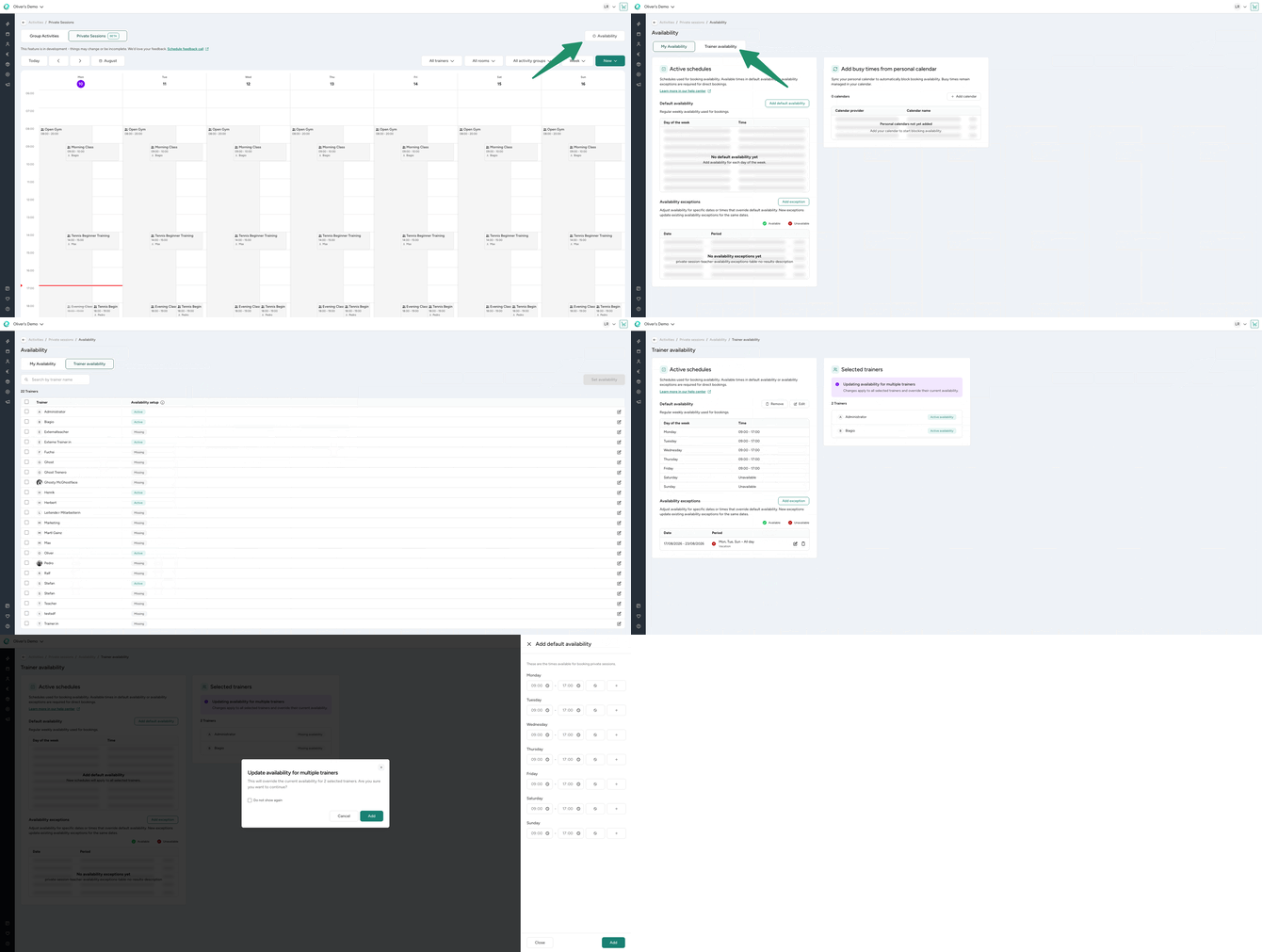
As an admin or leading employee, you'll see the overview via the "Availability" button in the Private Session calendar (or you can navigate there if you're also active as a teacher yourself):
- The overview shows each teacher's availability (missing/inactive/active)
- Select one or multiple teachers and click "Set availability"
- Changes apply to all selected people and overwrite existing settings where they overlap (time-off entries are added additionally)
➡️ Learn how to manage teacher availability in detail in this article.